November Deal – 20% Off!
Use code
NOV26






Spencer
Spencer
Save your perfect workspace.
Bring it back anytime.
Spencer
Save your perfect workspace.
Bring it back anytime.
Every window. Every display. Every Space.
Every window.
Every display.
Every Space.
Save and restore your entire workspace in one click —
including Full Screen and Split View.




What shall we work on?

Native Mac Spaces
Save and restore layouts across every virtual desktop. Built directly into macOS Mission Control without workarounds.

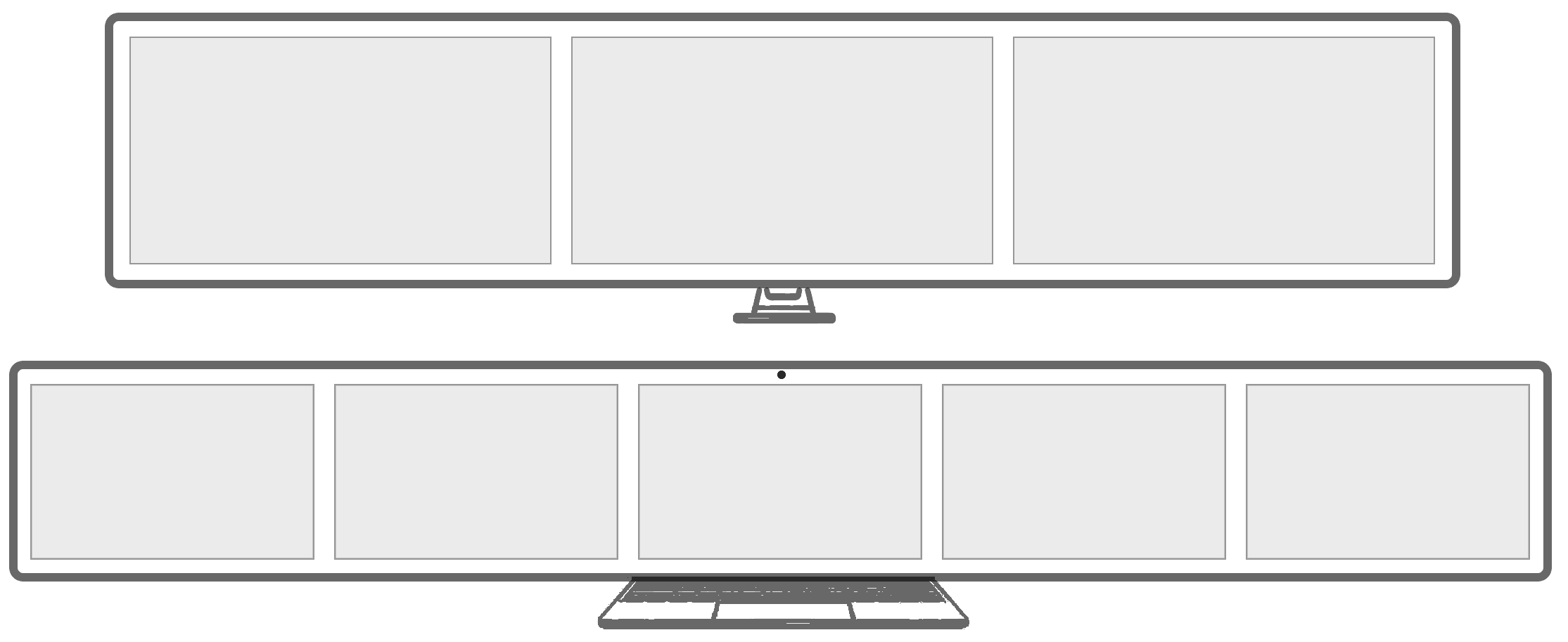
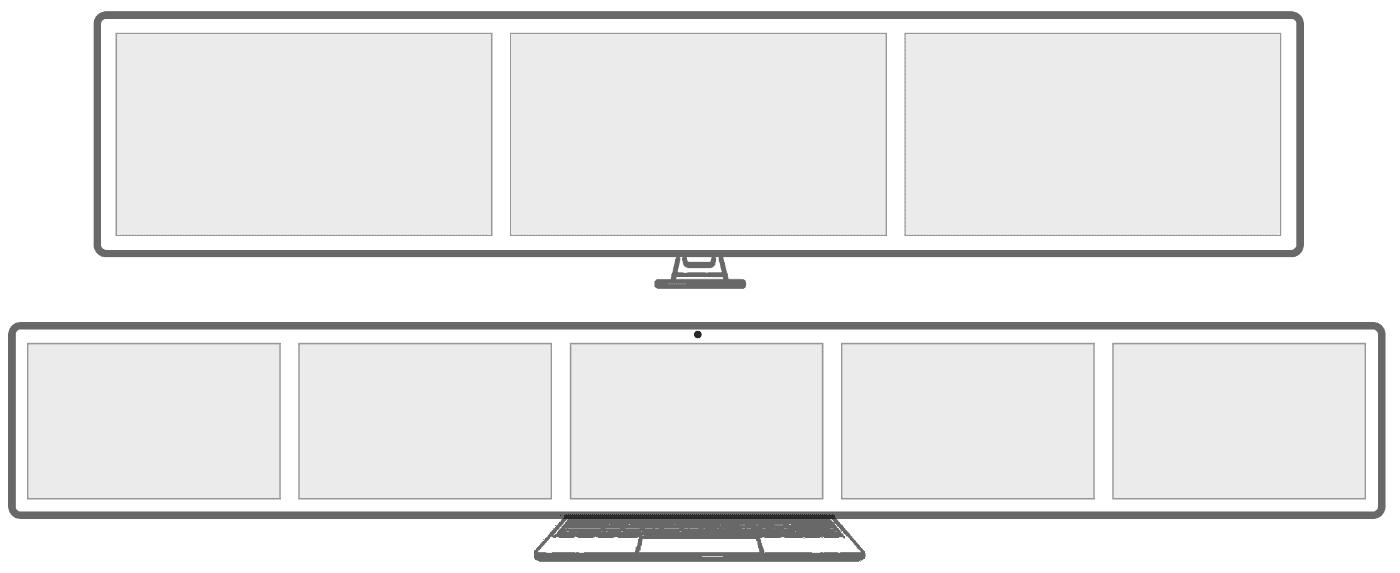
Multi-Display Setups
Perfect for both laptops and multi-monitor rigs. Save dedicated profiles for each display setup and switch with a click.

Dynamic Space Count
Need 3 spaces for writing, but 8 for coding? Spencer automatically creates or removes virtual desktops to match your profile.

Launch and Hide Apps
Spencer launches the apps you need and hides the rest — so you never lose unsaved work.
Full Screen & Split View
Other window tools break in full-screen mode. Spencer restores full-screen apps and side-by-side Split Views natively.

Freeform Window Layouts
Any size, any position, even overlapping. Spencer gives you total freedom without forcing your windows into rigid grids.
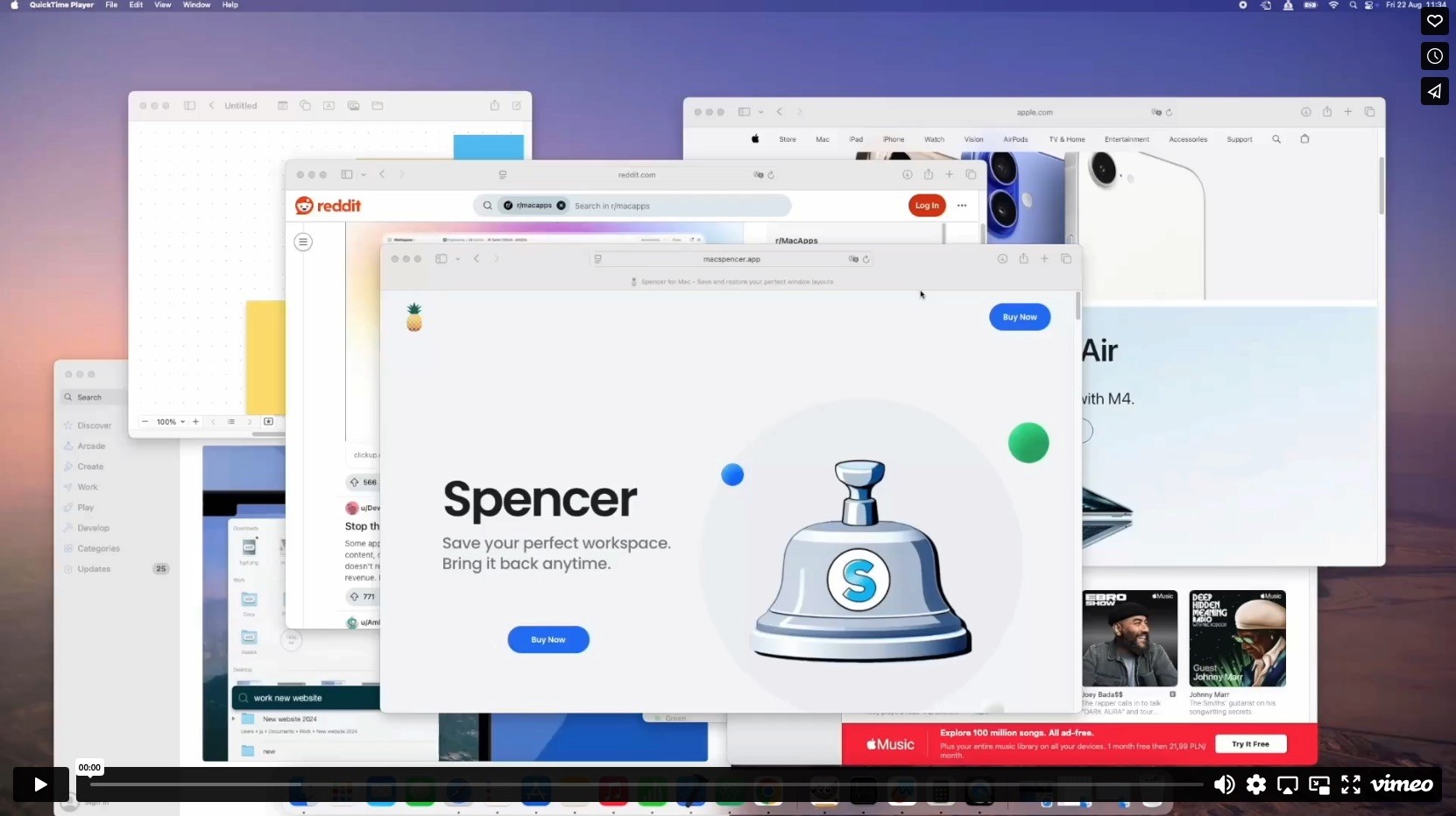
See me in action.
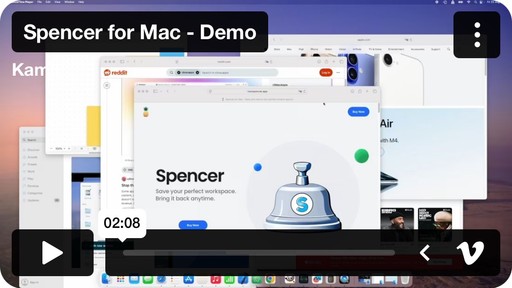
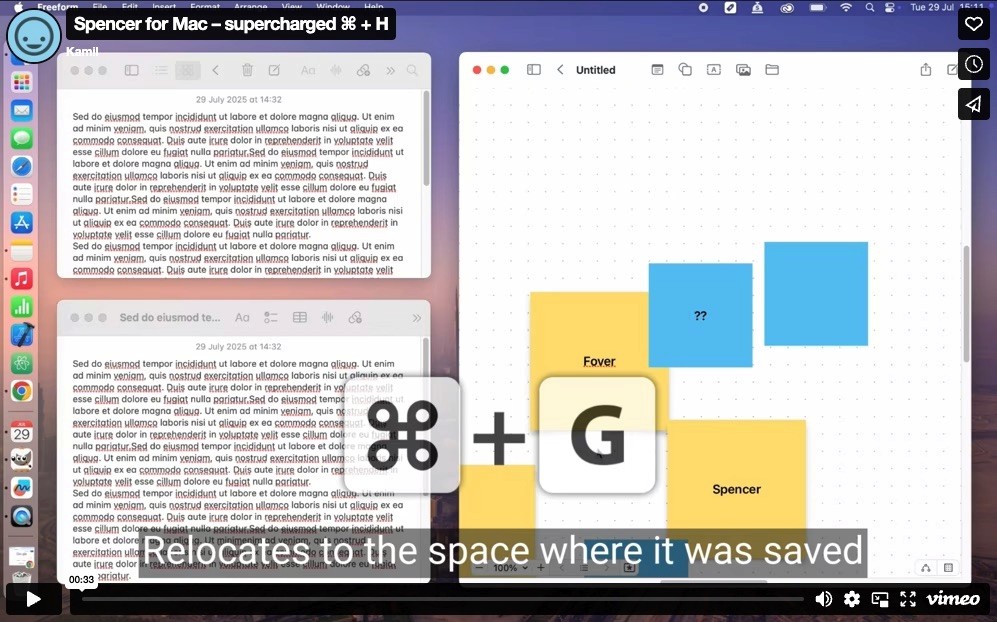
Meet supercharged ⌘ + H.
Restore position. Switch Space. Hide. Minimize - all in one shortcut.
Create profiles to focus on what matters.
Create profiles to focus on
what matters.
Easily switch between tasks without distractions. Adjust visible apps and spaces to match your workflow. Save and restore window positions and sizes based on your display setup.
Easily switch between tasks without distractions.
Adjust visible apps and spaces to match your workflow. Save and restore window positions and sizes based on your display setup.
Work
Stay organized. Instantly switch between your apps.

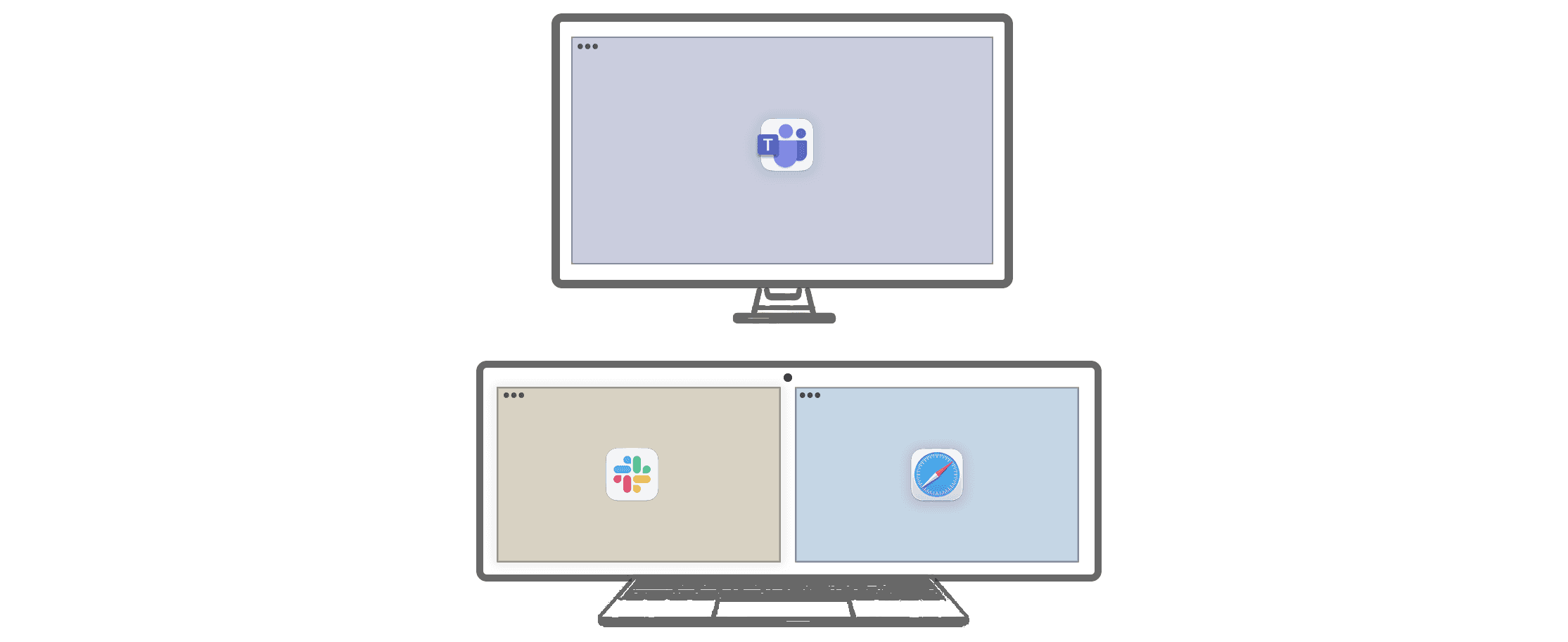
Meetings
Don’t share anything by mistake.
Relax
Take a break, recharge, and forget about work.

Work
Work
Stay organized. Instantly switch between your apps.
Stay organized. Instantly switch between your apps.

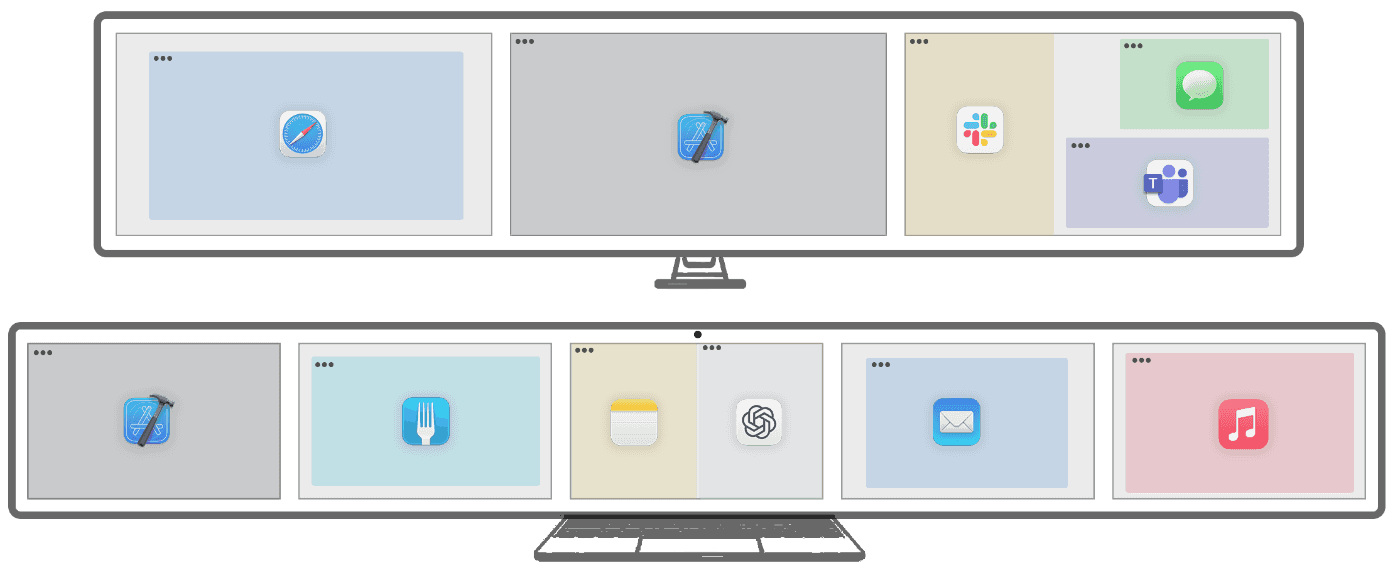
Meetings
Meetings
Don’t share anything by mistake.
Don’t share anything by mistake.

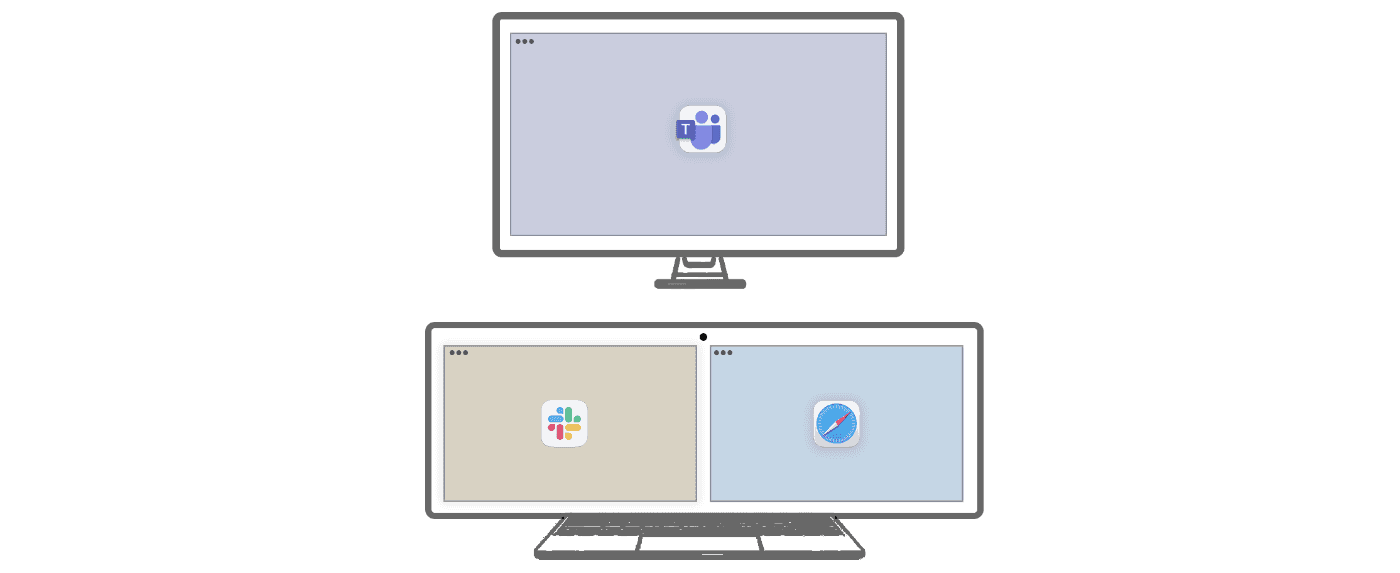
Relax
Relax
Take a break, recharge, and forget about work.
Take a break, recharge, and forget about work.

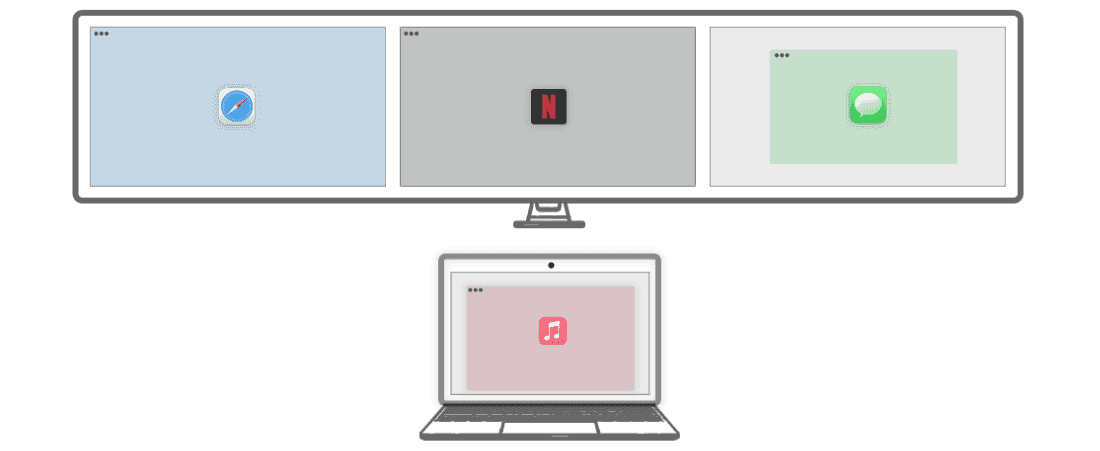
Switching between profiles doesn’t close your apps, they are simply hidden in the dock. This ensures you never lose your work progress.
Be organized. Stay focused.
Look only at the essential things.
Be organized.
Stay focused.
Look only at the essential things.
People are talking...
Real stories from real Mac users

“This is hands down the best app of its kind I’ve ever used. I work with 17 desktops every day, each filled with different programs that make up my entire workflow. Thanks to this app, I save a huge amount of time daily.”
macgyverkam
“This is hands down the best app of its kind I’ve ever used. I work with 17 desktops every day, each filled with different programs that make up my entire workflow. Thanks to this app, I save a huge amount of time daily.”
macgyverkam

“I especially love how it works with Spaces. I’ve tried other apps, but none of them let me add or remove the specific space I need — this one does, and it does it smoothly.“
terza36
“I especially love how it works with Spaces. I’ve tried other apps, but none of them let me add or remove the specific space I need — this one does, and it does it smoothly.“
terza36

“I love the app. I change between single Mac, work dual screens and home ultrawide. It has made using a Mac soooo much easier.“
MDSCFL3
“I love the app. I change between single Mac, work dual screens and home ultrawide. It has made using a Mac soooo much easier.“
MDSCFL3

„I’ve been testing Spencer and fell in love with the app since minute one. … Spencer is now one of my must-haves, one of those apps I will install first in any new device.”
meremention
„I’ve been testing Spencer and fell in love with the app since minute one. … Spencer is now one of my must-haves, one of those apps I will install first in any new device.”
meremention

“I use Spencer every day. This is very useful and it’s great to have various apps on screen(s) according to profiles. It’s great!“
salBCN
“I use Spencer every day. This is very useful and it’s great to have various apps on screen(s) according to profiles. It’s great!“
salBCN

“Spencer addresses a common productivity pain point: the time wasted rearranging windows... The app's strength lies in its simplicity and reliability... For anyone serious about optimizing their digital workspace, worth trying.”
Scout Froge
“Spencer addresses a common productivity pain point: the time wasted rearranging windows... The app's strength lies in its simplicity and reliability...”
Scout Froge
“Spencer addresses a common productivity pain point: the time wasted rearranging windows... The app's strength lies in its simplicity and reliability... For anyone serious about optimizing their digital workspace, worth trying.”
Scout Froge
Get Spencer
Get Spencer
Get Spencer
One-time purchase, no subscription.
Pick how many Macs you need.
One-time purchase, no subscription.
Pick how many Macs you need.
One-time purchase, no subscription.
Pick how many Macs you need.

Apple-notarized
Apple-notarized

macOS 13 Ventura or later
macOS 13 Ventura or later

Moves to your next Mac
Moves to your next Mac
November Deal — 20% Off
November Deal — 20% Off
November Deal — 20% Off
Regular prices: $25 / $35 / $45
Regular prices: $25 / $35 / $45
Regular prices: $25 / $35 / $45
Try it free for 7 days · 14-day money-back guarantee
Try it free for 7 days
14-day money-back guarantee
Frequently Asked Questions
How is Spencer different from other window managers?
Most Mac window tools fall into two camps: • Window snappers (Magnet, Rectangle): They arrange windows into grids on your current screen, but they don't remember setups across multiple displays or virtual Spaces. • Tiling managers (AeroSpace, Yabai): They force windows into rigid layouts and often require disabling macOS System Integrity Protection (SIP) or replacing native Spaces entirely. Spencer takes a different approach: It works directly with native macOS Spaces and multiple displays. It snapshots your exact layout — including full-screen apps and Split Views — and restores every window without altering how macOS naturally works.
Move your license to a new Mac
Once you’ve reached the activation limit, you can transfer your license to a new device by signing in to [https://app.lemonsqueezy.com/my-orders/login] using the email address provided when purchasing Spencer. Then open your order and manage the activated devices. For assistance, please email contact@macspencer.app.
Is Stage Manager supported?
Not currently. Stage Manager support is on the roadmap. Today, Spencer requires standard window management with native macOS Spaces.
Restoring full sessions (e.g. browser tabs, windows, files)
Spencer can launch apps and reposition multiple windows, but it cannot open new windows, browser tabs, individual files, or projects after they’ve been closed. Tip: Instead of closing windows, keep all your app windows open across different layouts. Spencer will automatically minimize the ones that don't belong to the current layout, and restore them when you switch back. Layout A → Window 1 visible, Window 2 minimized Layout B → Window 1 minimized, Window 2 visible
Compatibility with Window Managers
✅ Fully compatible with: Moom, Rectangle, Magnet 🚫 Not yet compatible with: Yabai (coming soon), Aerospace 🗳️ Please complete a one-question survey to let me know which window manager is most important to you.
Previous versions
https://get.macspencer.app/Spencer_1.7.6.dmg https://get.macspencer.app/Spencer_1.6.2.dmg https://get.macspencer.app/Spencer_1.5.6.dmg https://get.macspencer.app/Spencer_1.4.4.dmg
How can I get a refund?
You have 14 days from the date of purchase to request a refund — no reason needed. To do so, just send an email to contact[at]macspencer.app with the subject line “Refund request”, including your order number (found in the license key email). Refunds are issued within 14 days of purchase.
How is Spencer different from other window managers?
Most Mac window tools fall into two camps: • Window snappers (Magnet, Rectangle): They arrange windows into grids on your current screen, but they don't remember setups across multiple displays or virtual Spaces. • Tiling managers (AeroSpace, Yabai): They force windows into rigid layouts and often require disabling macOS System Integrity Protection (SIP) or replacing native Spaces entirely. Spencer takes a different approach: It works directly with native macOS Spaces and multiple displays. It snapshots your exact layout — including full-screen apps and Split Views — and restores every window without altering how macOS naturally works.
Move your license to a new Mac
Once you’ve reached the activation limit, you can transfer your license to a new device by signing in to [https://app.lemonsqueezy.com/my-orders/login] using the email address provided when purchasing Spencer. Then open your order and manage the activated devices. For assistance, please email contact@macspencer.app.
Is Stage Manager supported?
Not currently. Stage Manager support is on the roadmap. Today, Spencer requires standard window management with native macOS Spaces.
Restoring full sessions (e.g. browser tabs, windows, files)
Spencer can launch apps and reposition multiple windows, but it cannot open new windows, browser tabs, individual files, or projects after they’ve been closed. Tip: Instead of closing windows, keep all your app windows open across different layouts. Spencer will automatically minimize the ones that don't belong to the current layout, and restore them when you switch back. Layout A → Window 1 visible, Window 2 minimized Layout B → Window 1 minimized, Window 2 visible
Compatibility with Window Managers
✅ Fully compatible with: Moom, Rectangle, Magnet 🚫 Not yet compatible with: Yabai (coming soon), Aerospace 🗳️ Please complete a one-question survey to let me know which window manager is most important to you.
Previous versions
https://get.macspencer.app/Spencer_1.7.6.dmg https://get.macspencer.app/Spencer_1.6.2.dmg https://get.macspencer.app/Spencer_1.5.6.dmg https://get.macspencer.app/Spencer_1.4.4.dmg
How can I get a refund?
You have 14 days from the date of purchase to request a refund — no reason needed. To do so, just send an email to contact[at]macspencer.app with the subject line “Refund request”, including your order number (found in the license key email). Refunds are issued within 14 days of purchase.
Spencer vs. other window managers
Most Mac window tools fall into two camps: • Window snappers (Magnet, Rectangle): They arrange windows into grids on your current screen, but they don't remember setups across multiple displays or virtual Spaces. • Tiling managers (AeroSpace, Yabai): They force windows into rigid layouts and often require disabling macOS System Integrity Protection (SIP) or replacing native Spaces entirely. Spencer takes a different approach: It works directly with native macOS Spaces and multiple displays. It snapshots your exact layout — including full-screen apps and Split Views — and restores every window without altering how macOS naturally works.
Move your license to a new Mac
Once you’ve reached the activation limit, you can transfer your license to a new device by signing in to [https://app.lemonsqueezy.com/my-orders/login] using the email address provided when purchasing Spencer. Then open your order and manage the activated devices. For assistance, please email contact@macspencer.app.
Is Stage Manager supported?
Not currently. Stage Manager support is on the roadmap. Today, Spencer requires standard window management with native macOS Spaces.
Restoring full sessions (e.g. browser)
Spencer can launch apps and reposition multiple windows, but it cannot open new windows, browser tabs, individual files, or projects after they’ve been closed. Tip: Instead of closing windows, keep all your app windows open across different layouts. Spencer will automatically minimize the ones that don't belong to the current layout, and restore them when you switch back. Layout A → Window 1 visible, Window 2 minimized Layout B → Window 1 minimized, Window 2 visible
Compatibility with Window Managers
✅ Fully compatible with: Moom, Rectangle, Magnet 🚫 Not yet compatible with: Yabai (coming soon), Aerospace 🗳️ Please complete a one-question survey to let me know which window manager is most important to you.
Previous versions
https://get.macspencer.app/Spencer_1.7.6.dmg https://get.macspencer.app/Spencer_1.6.2.dmg https://get.macspencer.app/Spencer_1.5.6.dmg https://get.macspencer.app/Spencer_1.4.4.dmg
How can I get a refund?
You have 14 days from the date of purchase to request a refund — no reason needed. To do so, just send an email to contact[at]macspencer.app with the subject line “Refund request”, including your order number (found in the license key email). Refunds are issued within 14 days of purchase.
Follow the progress
Follow the progress
Subscribe to the newsletter for important updates and exclusive offers!
Subscribe to the newsletter for important updates and exclusive offers!
No spam ever. Easy unsubscribe in every email.
No spam ever. Easy unsubscribe in every email.
Follow the progress
Subscribe to the newsletter for important updates and exclusive offers!
No spam ever. Easy unsubscribe in every email.


Privacy Policy
Copyright ©2026 Pineapple Kamil Daniel
20% off with code
NOV26
00:00:00:00